How to fix missing Microsoft service API permissions in SharePoint Admin Center when approving API access
Earlier this week, Microsoft was testing one of our solutions for marketplace review. As part of this, we had to ask for API permissions for a Microsoft service. We got an error saying they could not approve the Azure Storage API permissions because “the requested permission isn’t valid”.
The full error message was:
The requested permission isn’t valid. Reject this request and contact the developer to fix the problem and redeploy the solution.
I wrote an article on how to approve a multi-tenant WebApiPermissionRequests scope for your SPFx solution, and that fixed a similar issue. In this case, the issue was not a multi-tenant app. It was a first-party Microsoft service that should have been available in my tenant.
Here is how I looked into the problem, why it happened, and how to fix it quickly.
The configuration challenge
For this project, I needed my SPFx web part to connect to Azure Storage. In my package-solution.json file, I asked for the user_impersonation scope for the Azure Storage app ID (e406a681-f3d4-42a8-90b6-c2b029497af1).
Here is what that looks like:
{ "webApiPermissionRequests": [ { "resource": "e406a681-f3d4-42a8-90b6-c2b029497af1", "scope": "user_impersonation" } ]}Usually, deploying a package with this setup creates a pending API request in the SharePoint Admin Center. But when I tried to approve it, I got the “requested permission isn’t valid” error.
The investigation: looking under the hood
When the UI shows an unclear error, the best next step is to open your browser’s developer tools. I went back to the API access page in the SharePoint admin site, opened the Network tab, and clicked the approve button again.
I saw that the page called Microsoft Graph to get the Service Principal for the App ID I provided:
https://graph.microsoft.com/beta/servicePrincipals/?$filter=appId eq "e406a681-f3d4-42a8-90b6-c2b029497af1"The response gave the main clue:
{ "@odata.context": "https://graph.microsoft.com/beta/$metadata#servicePrincipals", "value": []}An empty value array meant the Service Principal did not exist in my tenant.
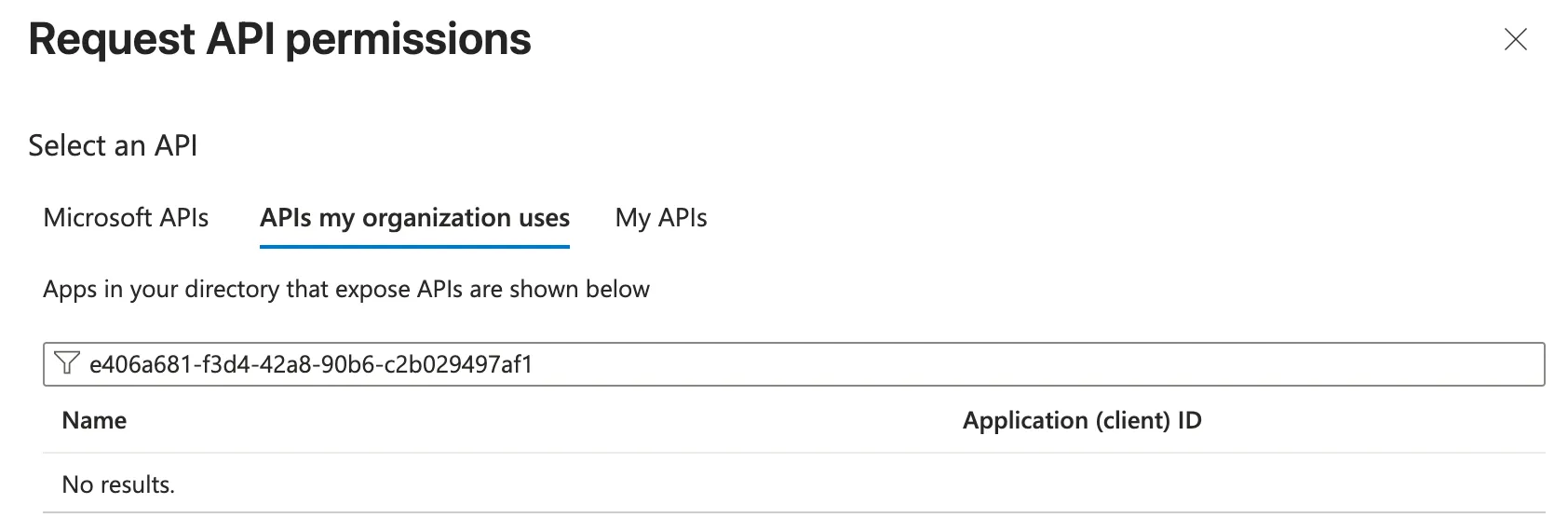
At first, this was confusing. This is not a custom third-party app; it is Azure Storage. To confirm, I went to Microsoft Entra ID (formerly Azure AD) and tried to find the API permission by hand. Still nothing.
Then I opened my terminal and checked with the Azure CLI. When I ran a command for the tenant, I got a message saying there was no active Azure subscription.
That explained everything. I was working in a tenant without an Azure subscription (Azure services run in another tenant), so the Azure Storage Service Principal was never created automatically.
The solution: creating the missing Service Principal
Once you know the Service Principal is missing, the fix is simple if you have Azure CLI (or Azure PowerShell) installed and you are signed in.
Manually creating the Service Principal for that App ID adds it to the tenant, and SharePoint can check the requested permissions.
Run the following command in your terminal:
az ad sp create --id e406a681-f3d4-42a8-90b6-c2b029497af1With the Service Principal active in the tenant, go back to the SharePoint Admin Center and click “Approve.” It should now work.
Resources
Related articles
Why it is important to keep the version in sync when using the library component in SharePoint Framework
Retrieving the image its focal point of a SharePoint Modern page
Approve a multitenant permission scope for a SPFx solution
Troubleshooting SharePoint Permission Approval: Learn how to create a Service Principal and define the correct resource for successful permission scope approval
Report issues or make changes on GitHub
Found a typo or issue in this article? Visit the GitHub repository to make changes or submit a bug report.
Comments



Let's build together
Manage content in VS Code
Present from VS Code
Engage with your audience throughout the event lifecycle